Join a meeting from the Skype for Business app
-
Open Skype for Business on your iOS device.
-
On the main screen, under Upcoming, tap the meeting you want to join.
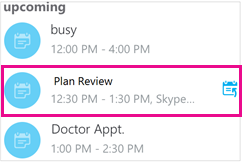
You can also tap the meetings button (
 ) to see all the items on your calendar.
 -
Select the meeting that you want to join, and then tap Join Meeting.
NOTE: If this is an online meeting, you'll see a Quick Join button (
 ). Tap it to go straight to the meeting. The Quick Join button is not currently available on iPad.
 -
Depending on how you set your Voice over IP call options, one of the following happens:
-
You’ll be connected to audio or video using VoIP either by using Wi-Fi (if you connected to a Wi-Fi network), or your cellular data plan.
-
Or, Skype for Business calls you on your mobile phone and you’ll accept the Skype for Business call to join the meeting. This happens only when the voice and video call options (on the Skype for Business Options page) are set to On and your device isn’t connected to a Wi-Fi network.
-
Join a meeting from the meeting invitation
-
Open the meeting invitation from your Outlook app or calendar, or other email app or calendar.
-
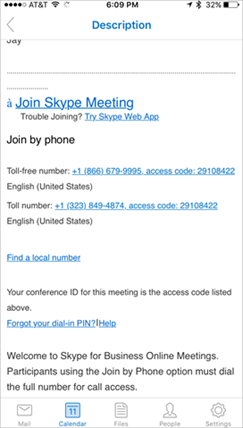
Tap the phone number you want to use to join the meeting.
-
At the bottom of the dialer screen, tap the dial prompt to automatically enter the conference ID (access code) and join the meeting.

Join a meeting or conference call by phone
You can also dial in to the meeting from any phone by dialing the Join by Phone numbers listed in the meeting invitation. The dial-in phone numbers are listed toward the bottom of the meeting request.
After you dial in, your phone number is displayed in the meeting roster.
Wait in the meeting lobby
The meeting lobby is an online waiting area. The meeting leader controls access to the meeting so you might need to wait until the meeting leader admits you. If you’re waiting in the lobby, don’t move to another app because your request to join the meeting will be cancelled if you do.
0 Comments