1. Tap the Sharepoint icon. 
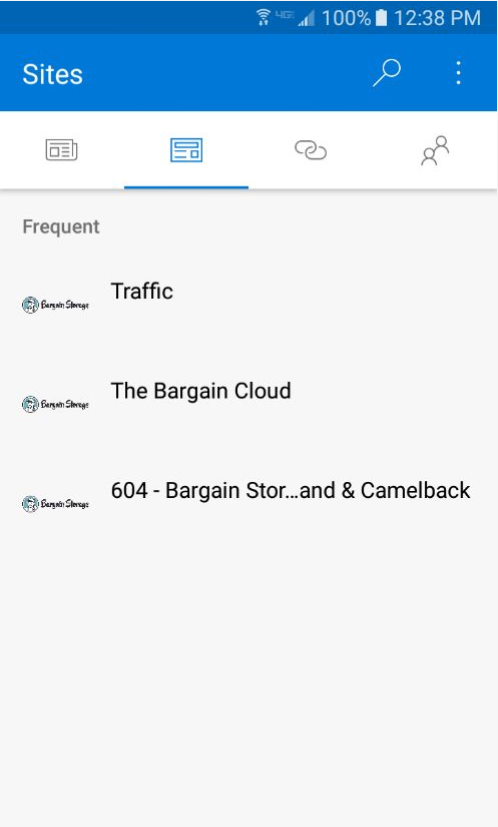
- The app will open with the three main sites you will use on the cloud.
2. Navigating the cloud on your smart phone is very similar to the cloud on your office computer. You will be presented with the three main sites.
- Traffic - This site contains your traffic log.
- The Bargain Cloud - This site contains the forms & processes as well as the company calendars.
- "My Property" - This site will be named using your property code in conjunction with your property name. The example above shows 604 - Bargain Storage @ Grand and Camelback. This page will contain items related to your property such as marketing materials, critical items lists, etc.
3. Tapping "Site Navigation" in any of the three main sites will give you access to the same folders as on your office computer.
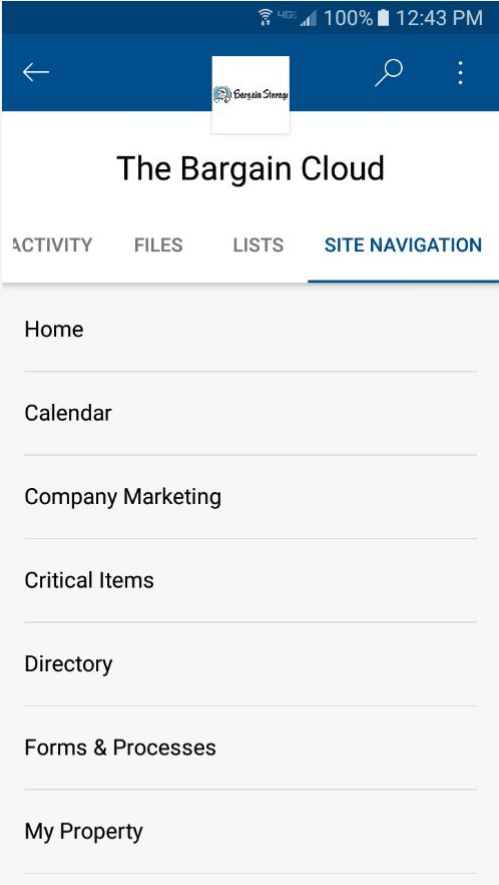
- Calendar - This folder contains the monthly calendar.
- Company Marketing - This folder contains your property's marketing info.
- Critical Items - This folder contains your weekly critical items lists.
- Directory - This folder contains the company directory.
- Forms & Processes - This folder contains all processes related forms and documents.
- My Property - This will open your property's cloud page in a web browser on your phone.
0 Comments