If your check scanner is not working, please follow these steps. There will be no need to unplug cables or reset the computer if these steps are followed accordingly.
Please note: The color of the check scanner light has no bearing on the status of the check scanners connection to Wells Fargo.
Check Scanner Repair Steps:
1. Right click the Task Bar and select Task Manager.
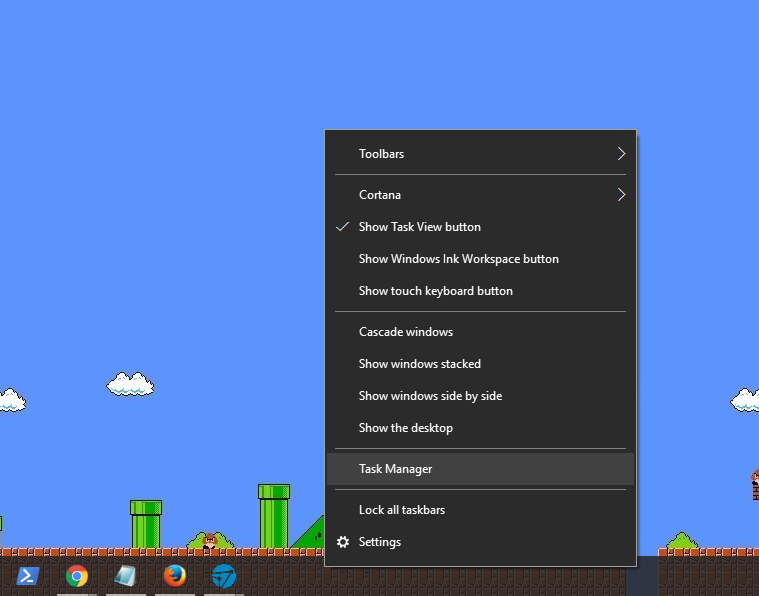
4. A small window will appear labeled Task Manager.
5. Select the Services tab. If separate tabs do not appear at the top of the small window click the small arrow in the left hand bottom corner labeled “More Details”.
6. Find the service labeled "WFDTDScannerService". You can filter the service names by clicking “Name” near the top of the screen.
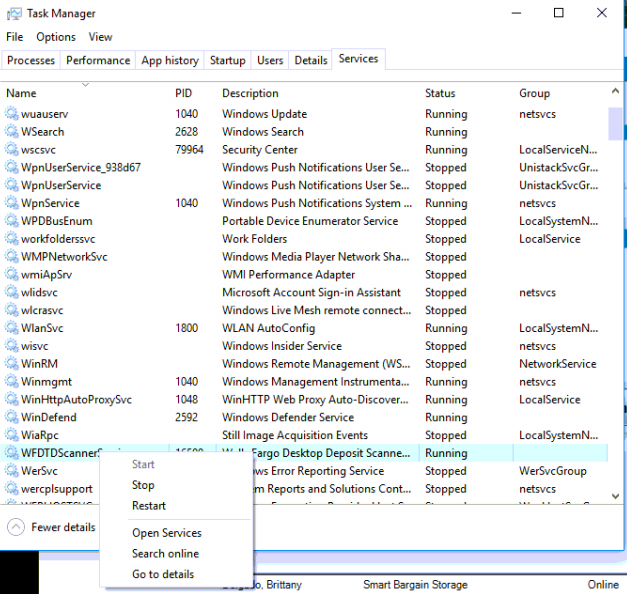
7. Right click and select stop.
8. Now select the processes tab and find the processes labeled Wells Fargo Desktop Deposit. Right click this and select End Task.
- NOTE: If the Wells Fargo process does not show up skip to step 9.
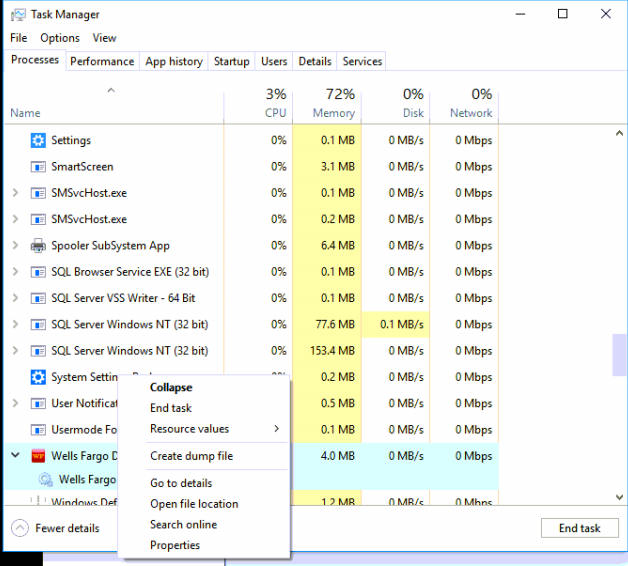
9. Once step 8 is complete repeat steps 6 & 7 but this time select "start".
10. Restart your web browser and you will now be able to scan checks.
0 Comments