In order to access the property traffic log you must be logged into a property email. This means if you are logged into your personal email you will not be able to view or edit the property's traffic log. There are multiple ways to verify which email you are logged into, in this article I will explain the most obvious way to check and what to do if you are not logged in to the correct email to view the traffic log.
The easiest way to verify which email you are logged into is to check the profile image in the upper right-hand corner. If logged into a property email this image will be a building or store front for the current property you are at. If logged into a personal email this image will be a photo of you or whomever is currently logged into their personal email.
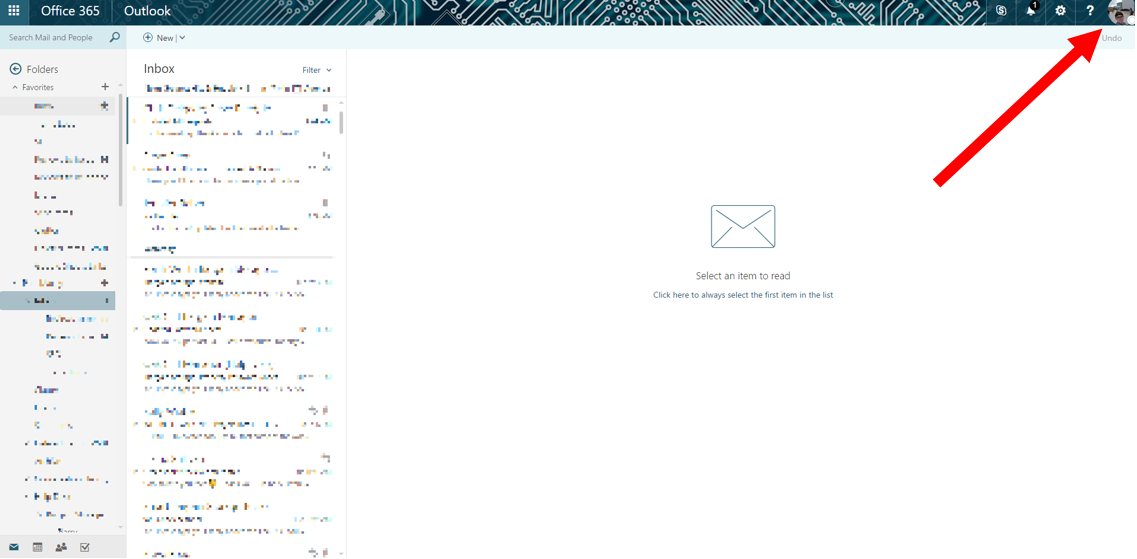
An example of where to look when verifying if the current email is property vs. personal
After having verified you are not logged into the correct email address you can follow these easy steps to login to the correct email:
1. Close the current page you were using to access the traffic log and open a fresh page using the icon labeled "Traffic Log" located on your desktop.
2. Next refer to the your Property Specific Data Sheet (Password Sheet) and find the Cloud Login and Password.
3. Now log out of your email by clicking the same photo you used to verify what email address you were using and click sign out.
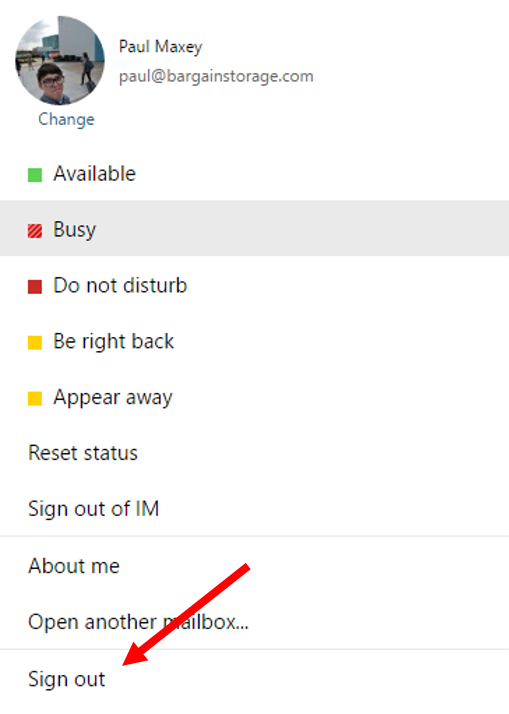
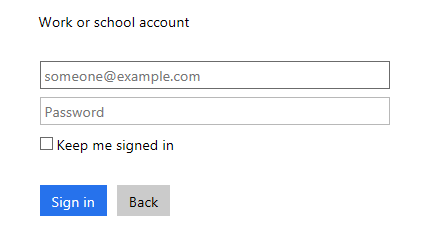
4. Finally login using the Cloud Login and Password located on your password sheet. If prompted to verify if the account is personal or work/school, please choose work/school as shown in the screen shot below.
If this does not solve the problem, please contact Support.
0 Comments